
1Why Add Subtitles to Your Videos?
Subtitled videos get 40% more engagement on social media. They are accessible to hearing-impaired viewers. They work in sound-off environments where most social media content is consumed. And they help non-native speakers follow along.
But creating subtitles from scratch is tedious. Timing every line to match the audio, formatting text for readability, and exporting in the right format takes significant effort. The shortcut: if your video is already on YouTube, the subtitles already exist. Just download them.
2Step 1: Download SRT from YouTube
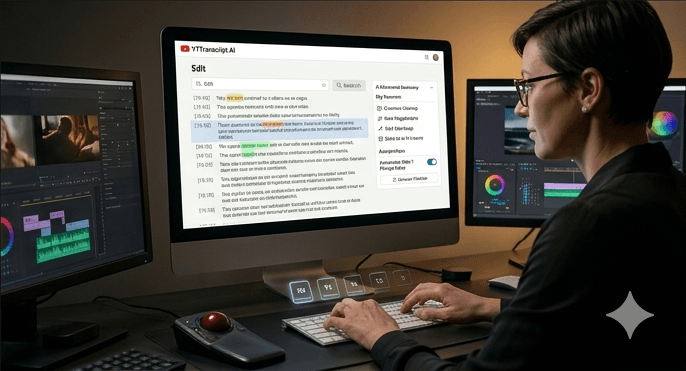
Paste your YouTube video URL into the transcript extraction tool. Once the transcript loads, click Export and select SRT format. The file downloads immediately with all timestamps perfectly synced to your video.
If you need subtitles in a different language, select the desired language track before exporting. Or use AI translation to generate subtitles in any language.
3Step 2: Import into Your Video Editor
Every major video editor supports SRT import:
Premiere Pro: File > Import, select your SRT file. It creates a captions track on the timeline, automatically synced.
DaVinci Resolve: File > Import > Subtitle. The subtitles appear in a dedicated subtitle track.
Final Cut Pro: Edit > Captions > Import Captions.
CapCut: drag the SRT file onto the subtitle track.
iMovie: does not support SRT natively, but third-party plugins add this capability.
After importing, you can customize the font, size, color, background, and position of the subtitles to match your video's style.
Try It Yourself
Paste any YouTube URL below and get the full transcript with timestamps in seconds. Free, no sign-up required.
4Step 3: Review and Adjust
After importing, scrub through the video to verify subtitle timing and accuracy. Auto-generated captions are usually well-timed but may have occasional text errors.
Common adjustments:
- Fix misspelled names or technical terms
- Split long subtitle entries into shorter ones for readability
- Adjust timing if you trimmed the video (shifting all timestamps by the trim offset)
- Add line breaks for readability on smaller screens
Most of these edits take just a few minutes. Starting with downloaded SRT saves 80-90% of the work compared to creating subtitles from scratch.