
1What Is an SRT File?
SRT stands for SubRip Subtitle. It is the most widely used subtitle format in the world — supported by virtually every video editor, media player, and streaming platform. An SRT file is a plain text document containing numbered subtitle entries, each with a start time, end time, and the text to display.
Here is what an SRT entry looks like:
1
00:00:05,000 --> 00:00:08,500
Welcome to today's tutorial on machine learning.
The simplicity of the format is its strength. You can open an SRT file in any text editor, make changes, and save. No special software required.
2How to Download SRT Files from YouTube
YouTube does not offer a direct SRT download button. To get an SRT file, you need a transcript extraction tool that can export in SRT format.
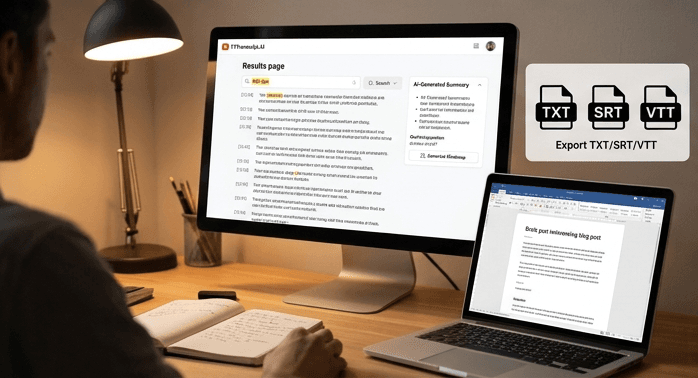
The process takes about ten seconds: paste the YouTube URL into the extraction tool, wait for the transcript to load (usually two to three seconds), then click Export and select SRT. The file downloads instantly with all timestamps perfectly synced to the original video.
You can choose which language track to download if the video has captions in multiple languages. For videos with only auto-generated captions, the AI Clean Transcript feature can fix punctuation and formatting before you export.
3Using SRT Files in Video Editors
Once you have your SRT file, importing it into a video editor is straightforward:
Adobe Premiere Pro: File > Import, select the SRT file. It creates a captions track on your timeline.
DaVinci Resolve: File > Import > Subtitle, select the SRT. It appears in the subtitle track.
Final Cut Pro: Edit > Captions > Import Captions, select the file.
CapCut: Drag the SRT file onto the subtitle track in the timeline.
VLC Media Player: Media > Open File, then drag the SRT file onto the video window.
In all cases, the subtitles sync automatically because the timestamps match the original video.
Try It Yourself
Paste any YouTube URL below and get the full transcript with timestamps in seconds. Free, no sign-up required.
4SRT vs. VTT: Which Format Do You Need?
SRT is the standard for desktop video editing and media players. VTT (WebVTT) is the standard for web browsers and HTML5 video players. The content is nearly identical — both contain timed text — but the formatting differs slightly.
Use SRT when: editing in Premiere Pro, DaVinci Resolve, Final Cut Pro, or playing in VLC.
Use VTT when: embedding subtitles in web pages, online courses, or HTML5 video players.
Most transcript tools let you export in both formats, so you do not need to choose in advance. Download both and use whichever your platform requires.
5Editing SRT Files
Because SRT files are plain text, editing them is simple. Open the file in any text editor (Notepad, VS Code, TextEdit) and make changes directly. You can fix typos, adjust timing, split or merge subtitle entries, or translate the text.
For bulk editing, tools like Subtitle Edit (free, open-source) provide a visual interface with waveform display, timing adjustment, and spell-checking. But for quick fixes — correcting a name spelling, adjusting a timestamp by half a second — a text editor is all you need.
Pro tip: if you are working with auto-generated captions, extract the transcript, run AI cleanup to fix common errors, then export as SRT. This gives you a cleaner starting point than editing raw auto-captions manually.